SAMS Help
What's this all about?
SAMS is the Student Ambassador Management System. It's a centralised, online interface to manage your shifts with Student Recruitment at the University of Sydney.
How does it all work?
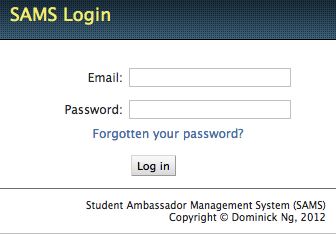
Here's the login page. Use this to log in with your email address and password. If you've forgotten your password, use that "Forgotten your password?" link to reset it.
When you log in, you get this page.
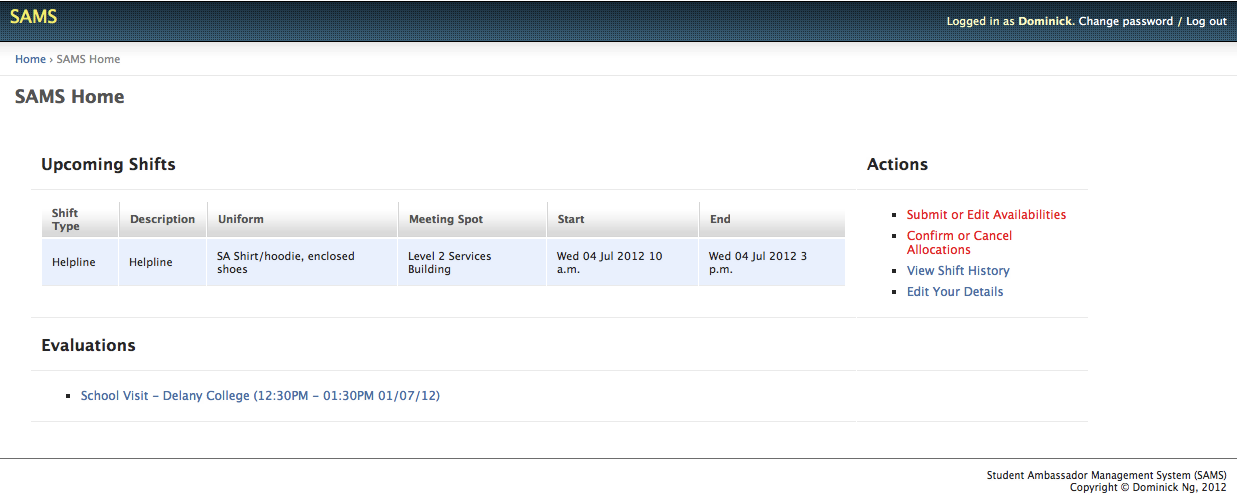
- Your upcoming shifts for the next few weeks appear in the centre left
- When new shifts have been released, or when new allocations are made, the appropriate link lights up in red. This means "new stuff here".
- After you finish a shift, any applicable evaluation forms will show up on this page. You should log into SAMS when you return to SRU after a shift to fill in the evaluation form
- You can change your password using the link in the top right hand corner
What about shift availabilities?
Clicking Submit or Edit Availabilities takes you here:
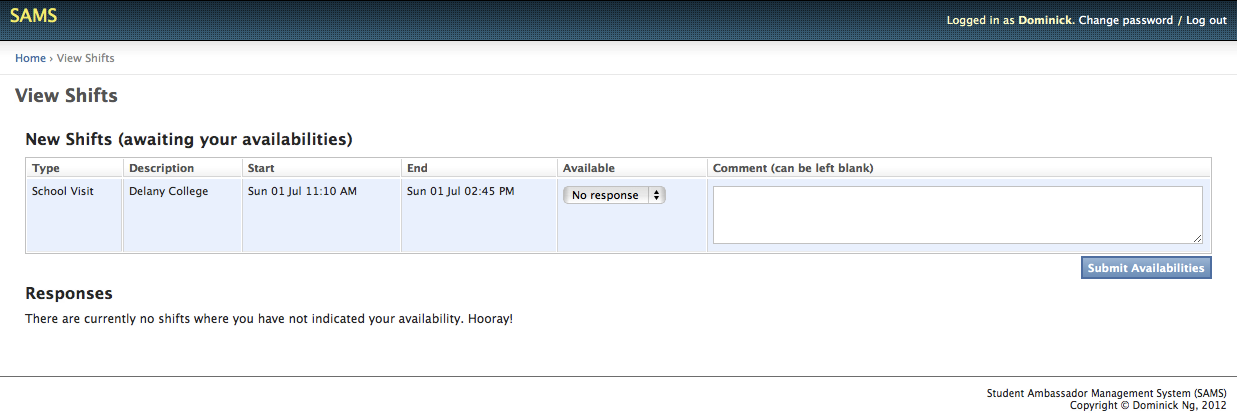
New shifts appear here for you to indicate your availability for. Pick whether you are "Available", "Unavailable" or "See Comment" (and add a comment) for each shift. You can also edit availabilties that you previously submitted in a similar fashion.
And allocations?
Similarly, Confirm or Cancel Allocations takes you here:
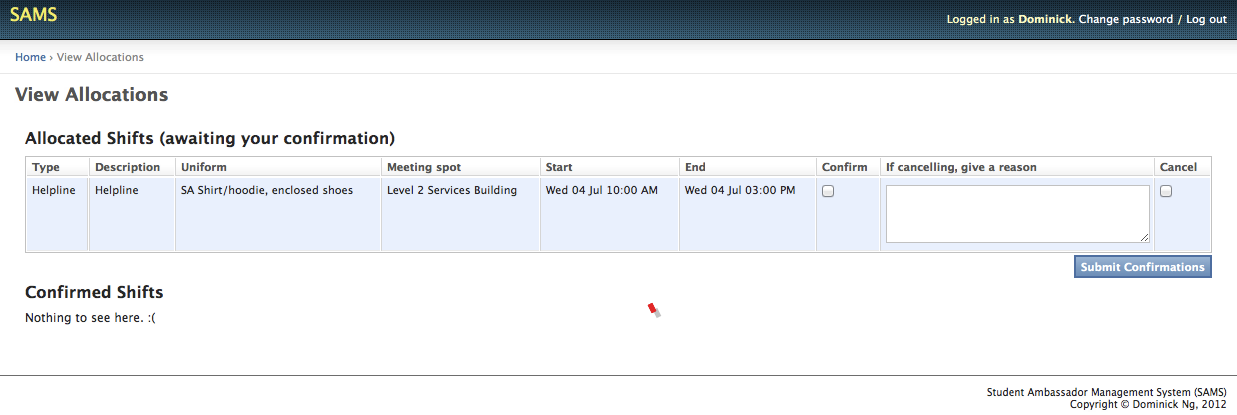
This page shows you the shifts you have been allocated to. You must acknowledge each shift that you are allocated to by ticking "Acknowledged" and submitting the confirmations. This lets the Student Recruitment Unit know that you have received the allocation and will show up on the day.
This page also lets you cancel shifts. Do this by ticking both the "Acknowledged" AND the "Cancel" tickboxes for a shift, and supplying a reason for your cancellation.
NOTE: cancelling allocations is considered bad karma. You should only do so in emergencies as it causes everyone lots of inconvenience.
I'm going away for six months...
Hooray for you! Click on Edit Your Details on the home page, then uncheck the "Available" tickbox and save. This means you won't receive any shift notifications or requests for availabilities until you recheck the option.

I get too many emails from SAMS / I don't hear enough from SAMS
You can adjust your email preferences and the profile information that SRU maintains about you through SAMS. Just click on Edit Your Details on the home page and find the mail option. Remember to press the save button at the bottom of the screen when you're done.

You can ask SAMS to email you:
- Every time a new shift is available (very spammy)
- Once a day, with a summary of new shifts (less spammy)
- Once every three days (twice a week), with a summary of new shifts (less spammy still)
- Once per week, with a summary of new shifts (the least spammy possible)
Regardless of your mail settings, you will get emails if:
- An urgent shift has been released
- You are allocated to a shift
- You have not acknowledged your allocations and there are less than three days left before the shift
I want to reminisce about shifts I've done
Check out the History page.
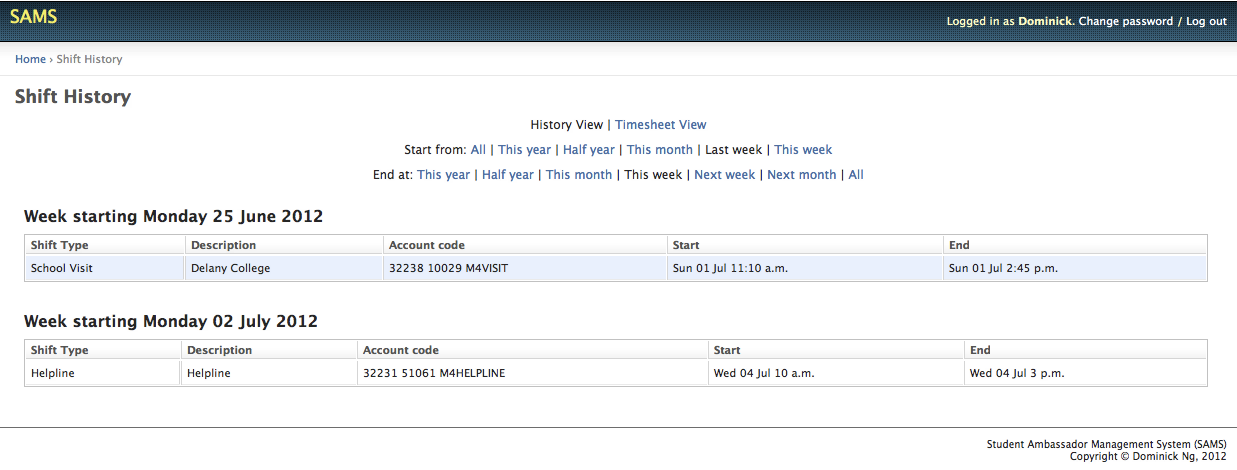
This lists the shifts you've done, as well as the appropriate paycodes for timesheets. You can filter the page by various time slices using the links at the top.
What about my MONEY?
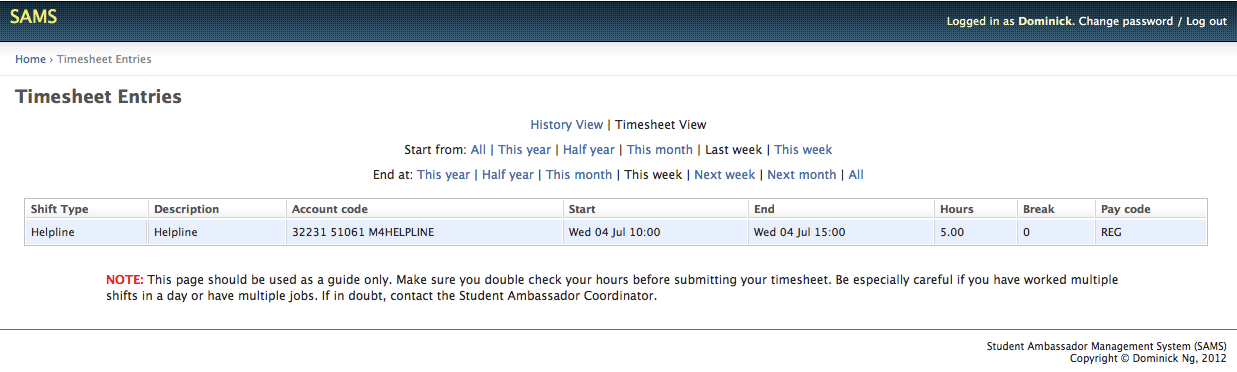
You may be interested in the experimental timesheet page. This tries to calculate your timesheet for you. However, due to the University of Sydney's incredibly complicated casual timesheet rules, you should double check the calculations that the page does. Also, it's impossible to automatically fill your timesheet. Sorry guys.
Also, the timesheet view doesn't even try to calculate hours for multi-day shifts. It's just too hard. You're on your own there.
Something isn't working!
Please contact the Student Ambassador Assistant at schools.outreach@sydney.edu.au if you have problems with shifts, allocations, HR or timesheets.
If you encounter a technical issue with SAMS, get in touch with Josh at joshua.lee@sydney.edu.au. If something went wrong, please take a screenshot of the page using the PrtScr button on your keyboard (Windows) or Cmd-Shift-3 (Mac) and attach that to the email. Thanks!